Instruction on how to install and use Microsoft Authenticator
1. Installing Microsoft Authenticator on Your Mobile Device
1.1 For Android Devices
- Open the Google Play Store on your Android phone.
- In the search bar, type Microsoft Authenticator.
- Locate the app published by Microsoft Corporation. Download
- Tap Install to download and install the app.
- Once installed, tap Open to launch Microsoft Authenticator.
- On the first screen, tap Sign in or Add account (or the equivalent option) and follow the prompts if required.
1.2 For Apple (iOS) Devices (iPhone / iPad)
- Open the App Store on your iPhone or iPad.
- Tap on the Search tab at the bottom.
- In the search box, type Microsoft Authenticator.
- Find the app published by Microsoft Corporation. Download
- Tap the Get button, then Install (you may need Face ID / Touch ID / Apple ID password).
- Once installation is complete, tap Open to start Microsoft Authenticator.
- On the first screen, tap Sign in or Add account (or the equivalent option) and follow the prompts if required.
Note: Keep your phone secure. Anyone with access to your Microsoft Authenticator app can see your verification codes.
2. How to Set Up MFA on Catalyst Portal
-
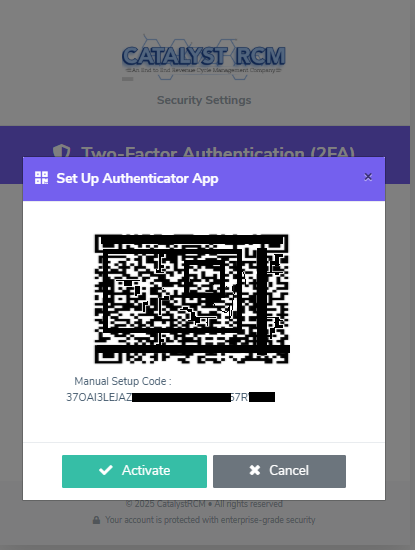
Once MFA comes into force and becomes mandatory, you need to proceed with setting up MFA on your account. You will be shown a
QR code on the Catalyst portal screen.
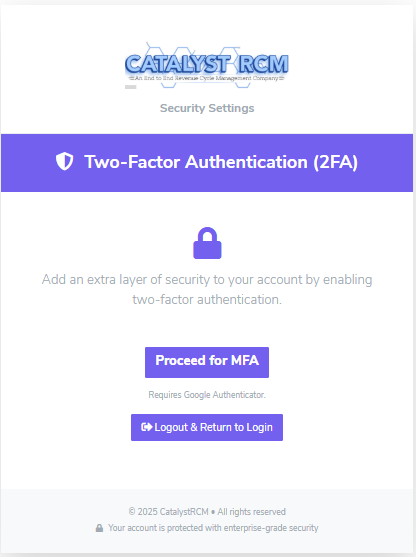
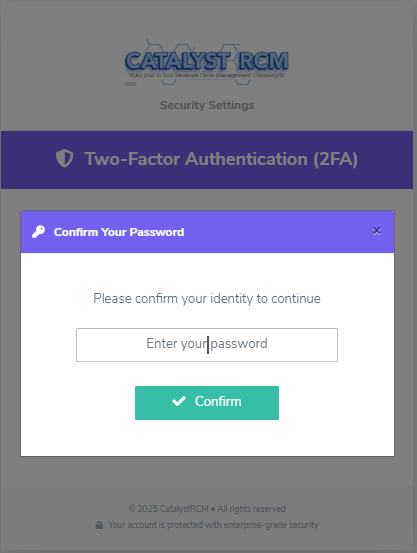
Open the Microsoft Authenticator app on your phone and choose:- Scan a QR code or Scan a QR code for an OTP account (or similar option).
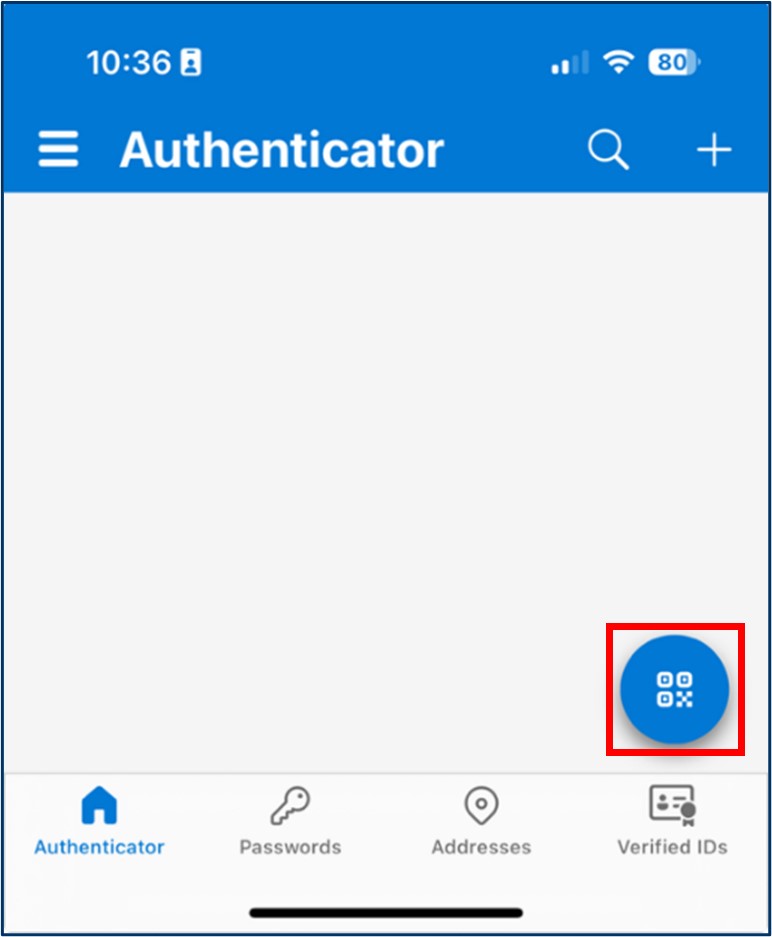
- Use your phone’s camera (from within Microsoft Authenticator) to scan the QR code displayed on the Catalyst portal.
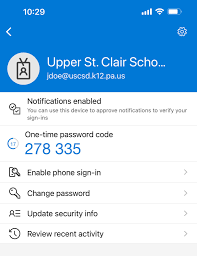
- After scanning, Microsoft Authenticator will automatically add an entry for your Catalyst account and start showing a 6-digit code that changes every 30 seconds.
- Once the QR code is scanned, go back to the Catalyst portal screen and click Continue or the relevant button to proceed.
- You will be prompted to enter the 6-digit code displayed in your Microsoft Authenticator app for your Catalyst entry.
- Open Microsoft Authenticator, note the current active 6-digit code for your Catalyst account, and type it in the verification code text box on the portal.
- Click Verify or Submit. If the code is correct and still valid, your MFA setup will be completed successfully.
- Once the correct code is entered, you are authenticated and authorized to work on the portal with MFA enabled.
Important (Future Logins):
After MFA is enabled:
After MFA is enabled:
- Each time you log in to the Catalyst portal, you must first enter your username and password as usual.
- After that, you will be asked to enter a 6-digit code from Microsoft Authenticator.
- Open the Microsoft Authenticator app on your mobile device, find the entry for the Catalyst portal, and enter the current active 6-digit code shown there.
- The code changes every 30 seconds, so make sure to enter it before it expires.
Recovery Tip: If you change or lose your phone, you will need to contact your system administrator or support team to reset your MFA and set it up again on your new device.